
Need Assistance?
Contact UsAccessing Your Accounts


Your Lobo Apps Account
MPC is proud to provide students with a Lobo Apps Account (network account and official MPC email address) and access to many online tools & resources through Lobo Apps (featuring Google Apps for Education)! All official MPC communications will be conducted through your assigned MPC Student Email Account, and other Google Apps may be used for classes you take at MPC.
Your account will be automatically created within about an hour of your application being fully processed. Afterwards, you’ll receive an email to the email address that you used to apply with instructions for accessing your Lobo Apps account and setting your password.
Didn't receive an email?
Using Lobo Apps
Once you have set up your new password you can access the Lobo Apps dashboard—a launch page to many of the applications used and supported by MPC. One of the tiles there is MyMPC (the student portal), where you can Register for Classes!
The first time you log in, you will be prompted to set a security question and enroll in Account Recovery. For more details on this process, view information on setting a security question and enrolling in account recovery below.
View Steps on Enrolling in Account Recovery
MPC Student Email
All students who are currently registered in a class have an MPC email address. This account is where you will receive all official notifications from the College and important announcements regarding campus events, scholarships, etc.
Access your Student MPC Email & Other Apps
- Click the Lobo Apps link in the top navigation bar of the MPC website OR go directly to https://sso.mpc.edu.
Instructions for Logging In
- You will be asked to sign in with your Lobo Apps Account username and password.
- In the username section, enter your Lobo Apps Account username (it is the beginning part of your email address)
- Enter your password in the Password field.
Account Details
- Your email address will be your 'First Initial + Last Name + Last Four Numbers of your StudentID'@mpc.edu
Example: jsmith5879@mpc.edu
- Your Lobo Apps Account will remain active for one year past the date of last enrollment.
* Students who choose to have their MPC email forwarded to a private, unofficial email address (e.g., hotmail.com, yahoo.com, etc.) do so at their own risk. MPC is not responsible for any difficulties that may occur in the proper or timely transmission or access of e-mail forwarded to any unofficial e-mail address.
If you have questions or need assistance, please contact us, including your Student ID number in the email.
Account Recovery
Click on the active link next to the prompt to set your security question. This brings you to a new webpage where you can create your own question and save your answer. Remember to choose a question that has a specific answer and will be easy for you to remember (an example is provided below.)
Click the "Save" button to save your question and answer in the system, you will see a green check on this page confirming you have completed this step when you are done.
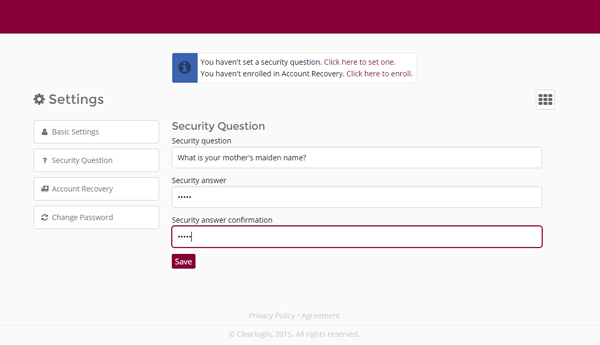
After you have set your security question don't forget to enroll in account recovery. Account Recovery allows you to reset your password, if you have forgotten it, without having to ask for assistance from IT.
- Click on the active link next to the prompt to enroll in account recovery. This brings you to a new webpage where you will enter a phone number where you can receive text messages.
- Enter your cell phone number and click the button to "validate" your number.
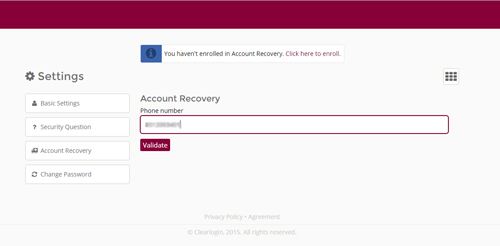
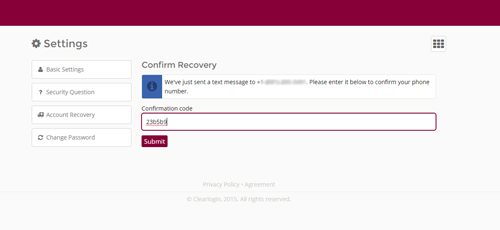
- Very quickly you should receive a text message on your cell phone with a confirmation code.
- Open the text message to retrieve the confirmation code you received and enter that Clear Login confirmation code in the field provided on this confirmation page.
- Once your number has been validated you will be taken a confirmation page that will display your current account recovery phone number and a green check verifying this step has been completed.
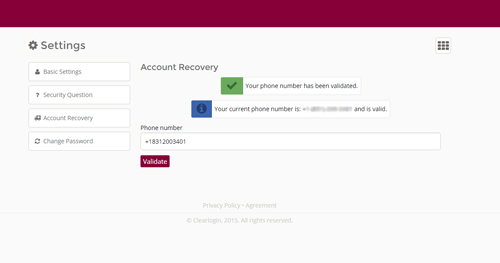
Once you have completed the steps above (activating your network account, setting your security question and enrolling in account recovery) you can return to the Lobo Apps dashboard to access your MPC tools, websites and applications.
- Click the dot grid to return to the main dashboard page
If you find you have a problem with your account that cannot be resolved using the instructions found on this page, please contact us for assistance, including your Student ID number in the email.