
Consult with a Counselor
Contact UsHow to Access Degree Works
1. Log into Lobo Apps
You can log into Lobo Apps from the link at the top of any www.mpc.edu webpage or sign in with the button link below.

2. Select MyMPC
Select the MyMPC Card from the Lobo Apps Dashboard to access the MyMPC Student Portal.

3. Select the Degree Works Card
Select the Degree Works Card from the MyMPC Dashboard to access your education plan.

4. Select Plan to View Details
Select a plan to view the details of the educational plan for that program.

5. Scroll to View the Advisable List of Courses
After you've selected the education plan, scroll down on the page to view the list of suggested courses advised by counselors.

6. View Suggested Course Information
To view more information about a suggested course, click the 3 dots in the upper right-hand corner for any course listed in the plan.

7. Explore Course Options & Ed-Plan To-Dos
Your course options and education plan to-dos will appear in different colors in your educaiton plan. Blue: course requirement, Orange: choice/option, Yellow: comments or to-dos for students within a specific term/semester.

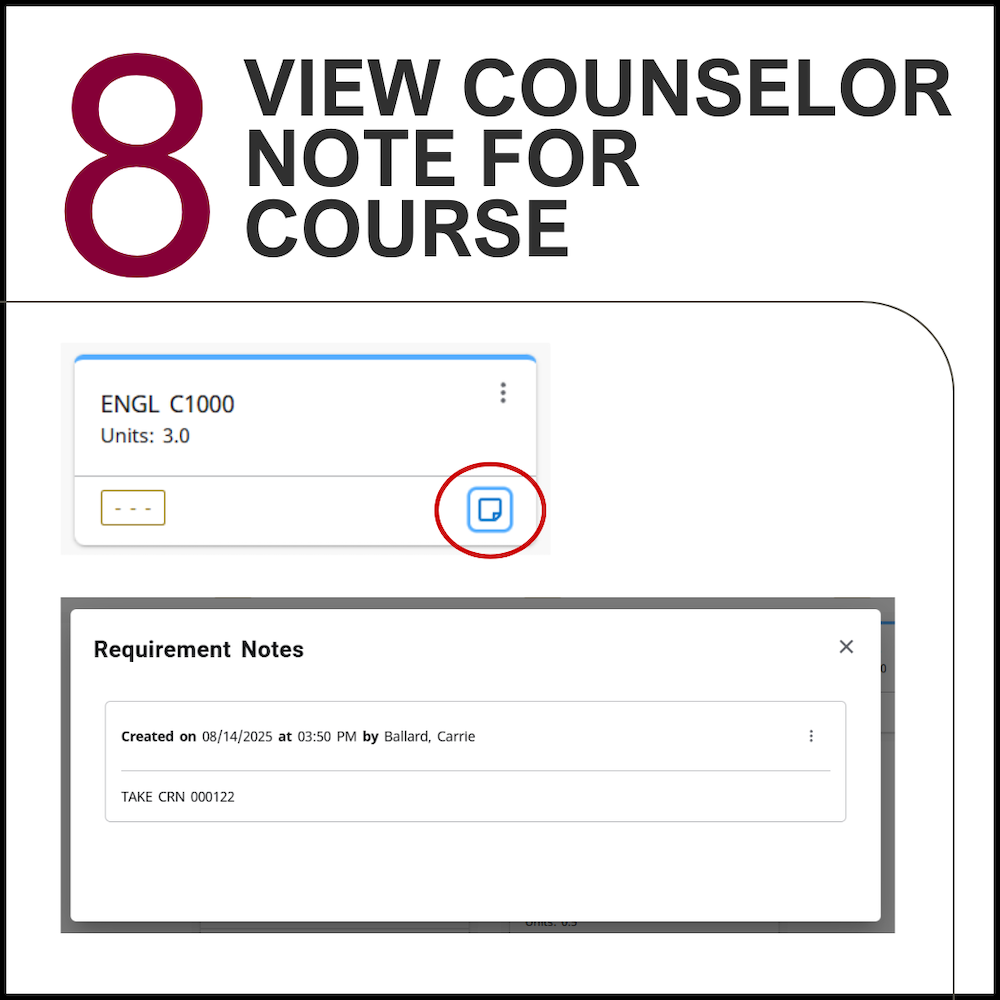
8. View Counselor Note for Course
If the notes icon is blue and not grayed out, you can click on it to view the counselor note for the course.
Personalized Guidance Matters
While Degree Works is a valuable planning resource, it does not replace meeting with a counselor. Students are encouraged to schedule regular counseling appointments for personalized educational planning and career guidance. Contact the Counseling Office to schedule an appointment.